 TextingReel
The short answer
- Write the conversation first, as a script. Keep each message short.
- Animate it with a chat video tool, so bubbles appear one by one with typing dots and sounds.
- Export a 9:16 video at 1080×1920 and keep it between 30 and 90 seconds.
- Pause briefly after the punchline, add music or a hook caption, and post.
Before you animate: write the script
Whatever method you use, the script decides whether the video works. Write it as plain text first, one message per line, and read it out loud. If a line would not be sent as a text, cut it.
- Pick two clear characters. "Mom", "Landlord", "Ex", "Gym". Viewers should know the relationship from the contact name alone.
- Start in the middle. The first message should already contain the problem: "Why did you give our app one star?"
- Escalate each reply. Every message should make things a bit worse, stranger or funnier.
- Save the reveal for late. The line that reframes the chat belongs near the end, followed by one short kicker.
- Aim for 5 to 10 messages. Fewer feels thin, more loses people.
Opening lines that hook
The first bubble has one job: make the viewer need the next one. A few patterns that work, with examples:
- The accusation: "Did you call me an idiot in the staff survey?"
- The wrong recipient: "Hi, this is Sarah from the dentist. Confirming tomorrow at 9!"
- The urgent command: "Come outside RIGHT NOW."
- The strange confession: "I think our apartment is haunted."
- The customer complaint: "Why did you give our alarm app one star?"
- The ex returns: "I miss what we had."
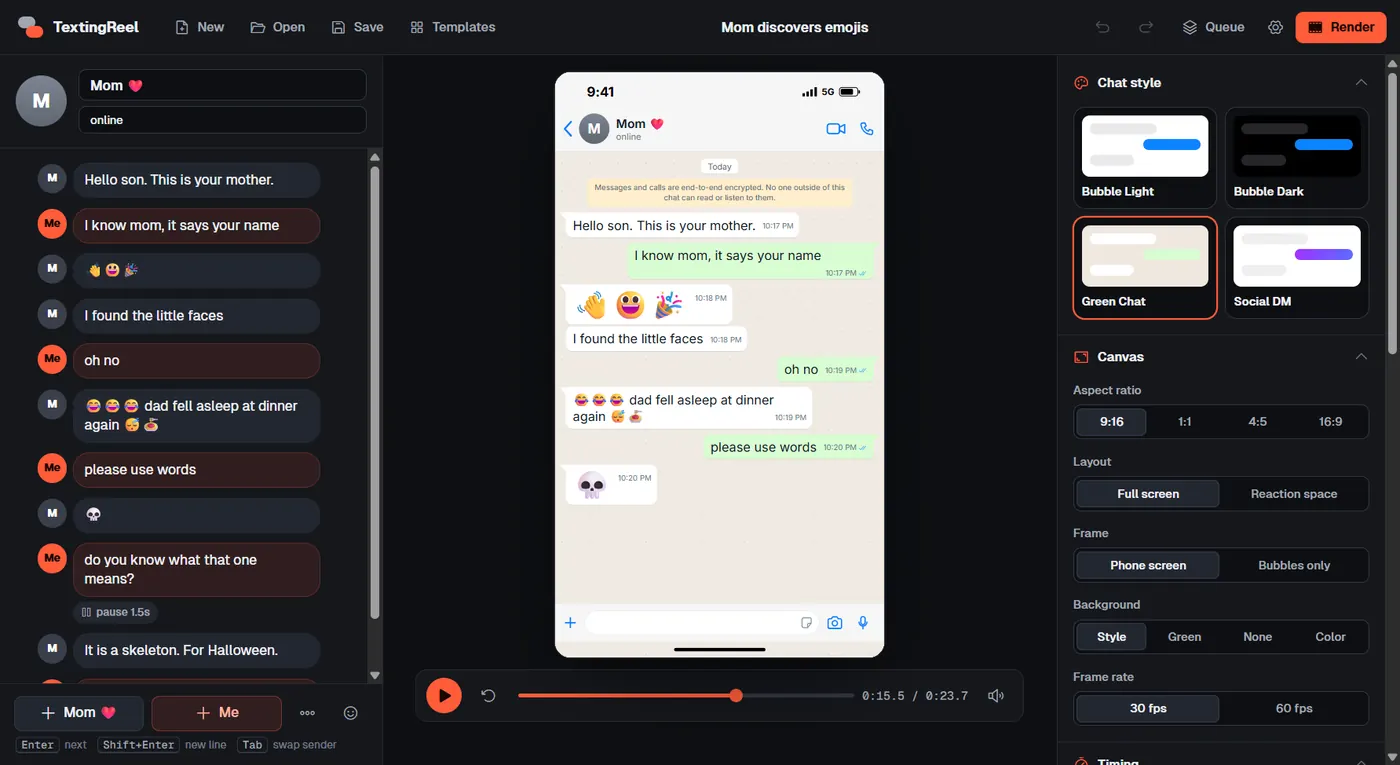
- The parent learns tech: "Hello son. This is your mother."
Each one sets up a relationship and a question in under ten words. Avoid openers like "hey" or "what's up" that give the viewer nothing to wonder about.
Need examples? Here are 15 complete text story scripts with the pause timing marked.
Method 1: Screen-record a real chat
Type the conversation on two phones (or with a friend), then screen-record while you scroll through it.
- Pros: free, and it looks exactly like your phone.
- Cons: you need a second phone or person, typos and notifications end up in the recording, timing is hard to control, and real names, numbers and photos can leak. It also only shows your own messaging app, which you should not present as someone else's conversation.
Good for a one-off. Painful for a series.
Method 2: Use an online text story generator
Web tools let you type a script in the browser, pick a phone skin and download a video. Many add AI voices and gameplay footage behind the chat.
- Pros: nothing to install, and extras such as AI voiceovers.
- Cons: most charge a monthly subscription with a video limit, free plans usually add a watermark or cap resolution at 720p, your scripts are uploaded to someone else's server, and you need a connection every time.
Method 3: Use a desktop chat video maker
A desktop app such as TextingReel does the animation on your own PC.
- Pros: one-time price, no watermark, full 1080p at 30 or 60 fps, works offline, private, and can batch-render many chats at once. TextingReel also exports green screen and transparent video for overlays.
- Cons: Windows only, and no built-in AI voices (you add voiceover in your editor).
Which method should you pick?
| Screen recording | Online generator | Desktop app | |
|---|---|---|---|
| Cost | Free | Usually monthly | One-time |
| Watermark | No | Often on free plans | No |
| Control over timing | Low | Medium | High |
| Many videos per week | Hard | Limited by plan | Batch rendering |
| Privacy | Real data at risk | Scripts uploaded | Stays on your PC |
Step by step with TextingReel
Install and set up
Run the installer. The first time, TextingReel downloads the free video encoder and renderer (about 225 MB). After that it works offline.
Write the chat
Type the contact name, then the messages. Enter adds the next reply from the other person, Tab switches sender, and the smiley button adds emoji.
Set the pacing
Choose a speed. Add a pause after the punchline and an extra wait before a dramatic reply using each message's options.
Pick style and format
Choose a chat style and 9:16. Turn on message and keyboard sounds, and add music if you want.
Preview and render
Press play to check the timing, then click Render. Your MP4 is saved to the Videos folder.
Try the desktop method: TextingReel is $12.99 once, with no watermark or subscription.
Get TextingReel $12.99Pacing: the part most videos get wrong
The same script can feel sharp or dead depending on timing. Rules of thumb that work:
- Hook in the first message. Start mid-conflict. Skip greetings.
- Give readers time, but not too much. About half a second plus a little per word. TextingReel does this automatically and lets you change the overall speed.
- Show typing before important replies. The typing dots build anticipation, especially before the punchline.
- Pause on the reveal. 1.5 to 2.5 seconds after the punchline lets it land and leaves room for a reaction clip or a sound effect.
- End fast. After the last punchline, hold for under a second. A quick end encourages replays.
Length, size and sound
- Size: 1080×1920 (9:16) for TikTok, Reels and Shorts. Use 1080×1350 (4:5) for feed posts.
- Length: 30 to 90 seconds. Split longer stories into Part 1, Part 2 and so on.
- Sound: message pops and keyboard taps make the chat feel alive even with music on top. Keep music low so the pops still cut through.
- Captions: the chat is already text, so add only a short hook caption at the top.
Adding a voiceover or background footage
Many text story channels add a narrator voice or put gameplay footage behind the chat. TextingReel keeps these as separate steps, which gives you more control:
- Render the chat. Use green screen or Reaction Space if footage will sit behind or beside it.
- Open the video in your editor (CapCut, Premiere Pro, DaVinci Resolve) and place your background footage underneath.
- Record your voiceover, or use your editor's text-to-speech, and line each line up with its bubble. The cue sheet next to the video lists every pause, which helps with timing.
- Keep the message sounds on a separate, quieter track so they still punctuate the voice.
Common mistakes
- Walls of text. A 40-word message is unreadable at scrolling speed. Split it into two or three bubbles.
- Too fast. If you have to pause the video to read it, viewers will swipe instead. Slow the speed a notch or add a pause after key lines.
- No payoff. A chat that just stops feels like a waste of time. End on a twist, a callback or a one-word reaction.
- Low resolution. 720p exports look soft next to native content. Export 1080×1920.
- Watermarks. A tool's logo on your video looks unprofessional and can hurt reach. Use a tool that exports clean video.
- Using real people's names or numbers. It is unfair to them and can get videos removed. Invent names and use obviously fake numbers.
Posting checklist
- 9:16, 1080×1920, 30 to 90 seconds
- First message hooks within two seconds
- Short hook caption on screen, for example "My landlord has lost it 💀"
- Music low enough that the message pops are audible
- Tagged as a skit or fiction where the platform offers it
- A "Part 2" planned if the story continues, so viewers follow
Label fiction as fiction
Made-up chats are a comedy format. Don't present them as real screenshots of real people, and use your platform's label for fictional or scripted content where it applies. Generic chat styles, like TextingReel's, also keep you from implying that a specific app or person is involved.